Write
A conversation is end-to-end encrypted from the very first second — that's not a setting, it's fixed.


Writing
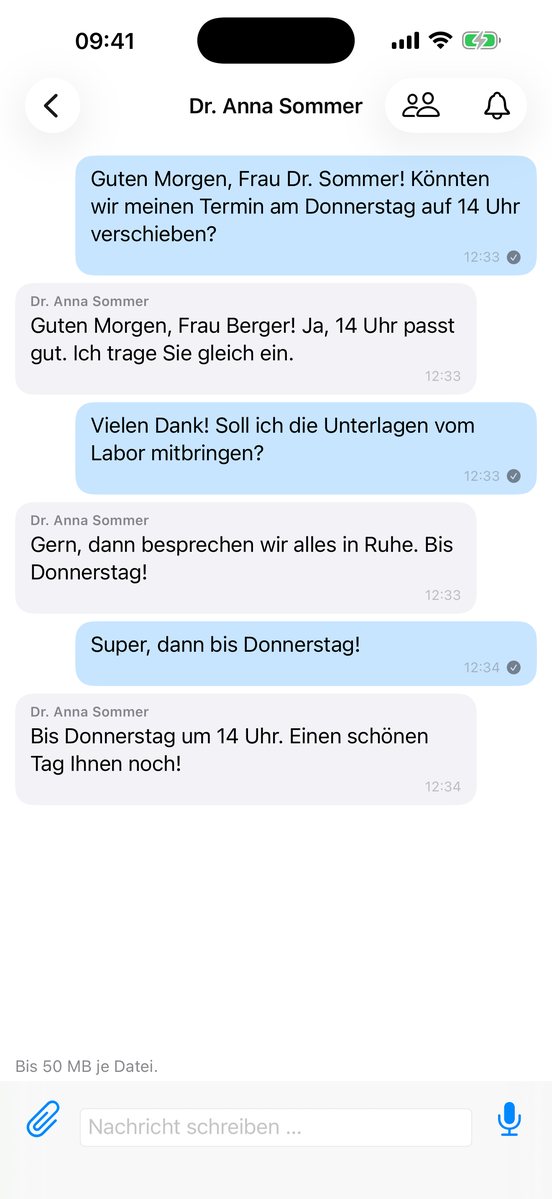
Text, replies, editing, deleting, reactions, "typing…" — everything you'd expect from a messenger. The tick next to your message shows whether it arrived; you can turn it off in settings.
Copy, select, edit
Press and hold a message. Copy (on Android Copy text) takes the whole text. Select text opens it in a window: press and hold a word, drag the selection as far as you like, then tap "Copy". Links are plain text there — they still open only via the notice.
You can edit your own messages at any time, not just in the first 15 minutes. The others see "edited" under the message. (Since iPhone 0.9.2 and Android 0.9.3.)
Links in messages
A link in a message can be tapped. First Orbit asks "Open link?" and shows where the link really leads: the name of the site in large type, the full address below it. If the address looks unusually built — a bare number address, an @ in it, or one with xn-- — a red warning appears. Only links with http or https are opened; email addresses are not links. Pressing and holding the message still gives the message menu. (New with iPhone 0.8.8 and Android 0.9.0.)
Search
In a chat: tap ⋯ (iPhone) or ⋮ (Android) at the top right, then "Search in chat". Type a word or just part of it — matches are highlighted in yellow, and ↑ and ↓ take you to the older or newer one. The search loads older messages by itself.
Everything: the search field of the chat list finds chats, people from your chats, and messages, photos, files and links — parts of words too, while you type. One tap opens the chat right at the match. It searches the messages stored on your phone; find even older ones with the search inside the chat.
It all happens on your phone: our server never learns what you search for, and it cannot read your messages anyway. (Since iPhone 0.8.7 and Android 0.8.9.)
Pin chats to the top
Press and hold a chat in the list and tap Pin — or, inside the chat, tap ⋯ (iPhone) or ⋮ (Android) at the top right, then Pin. Pinned chats always stay at the very top, with a pin on their row. Below them come chats with unread messages, then the rest in your sort order. The same way unpins it again (Unpin); deleting a chat unpins it too.
For now, only your phone remembers which chats are pinned — on a second device you pin them there. (Coming with the next version of both apps.)
Attachments
Photos and videos via the attachment button, without the app needing to see your whole photo library — you pick what goes out. With Take a photo and Record a video in the same menu you capture right in the chat (on Android since 0.9.3). Voice messages go via the microphone.
You open a picture, a video or a document with one tap. On the iPhone you close it with the X at the top (since version 0.8.6) or by swiping down. On Android, the X at the top closes an opened picture.
Forward and share
Press and hold a photo, a video or a file. Forward sends it to another chat, Share … hands it to another app (mail, messages, files), and Select marks several at once — like in the Photos app. At the bottom you then find Share, Save and Forward for everything you marked.
When forwarding, you pick the chat and see the recipient and the pictures before sending; you can add a comment. Orbit sends the pictures newly encrypted — the server cannot tell that the same picture goes to two chats. Whatever you share outside Orbit is no longer encrypted there. (Since iPhone 0.9.1 and Android 0.9.2.)
Sharing to Orbit from another app: photos, videos and files — and with the next version of both apps also links and text, for example a web page from Safari or Chrome. Tap Share, then BlueOcean Orbit Messenger, and pick the chat. The link is already in the field; you can add something or change it. Then Send.
Orbit further up in the share menu: on the iPhone, swipe left over the row of apps, tap More, then Edit, and tap the plus next to Orbit — it then sits at the front among your Favorites. You set this once in each app (in Safari, in Photos …). On Android, chats you have written in also appear with their picture at the top of the share menu — tap one and it goes straight to that chat.
Report and block
Press and hold a message or a person (or tap ⋮ at the top of the conversation) to report or block them. Blocking takes effect immediately and can be undone any time in settings. Zero tolerance applies to offensive content and harassment.
Next: Call →